ASC Setup — Configure How Vitals Appear in the Surgical Case
Note
The following describes an opt-in feature for practices that have ambulatory surgery centers (ASCs). To enable this feature for your organization, contact your CSM. For more information, see ASC Setup: Enable ASC Features.
You can configure how vitals appear in the surgical case through the new Surgical Case Vitals & Measurements admin page. Please use this page instead of the Procedure Vitals admin page for surgical case configuration.
Once you've finished configuring how vitals will appear in the surgical case, you can then record a patient's vitals.
With the Surgical Case Vitals & Measurements admin page, you can:
 Turn on or turn off a vital or measurement
-
On the Main Menu, click Settings
 > Clinicals.
 -
In the left menu, under Practice Links - Procedure Configuration, click Surgical Case Vitals & Measurements.
Tip: Alternatively, enter text in the search box.
The Surgical Case Vitals & Measurements admin page appears. -
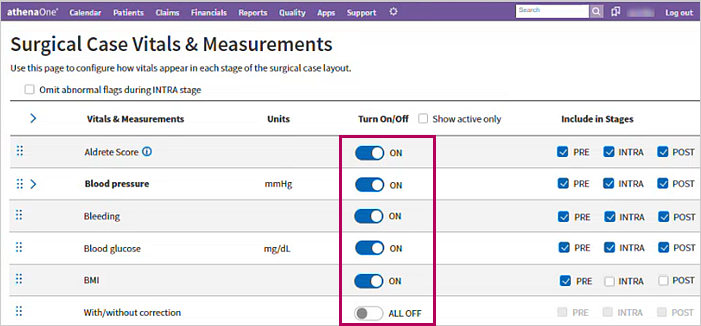
Click the toggle next to the vital or measurement you want to turn on or off.
Note
-
Vitals and measurements that you turn on will appear in all stages of the surgical case.
-
Vitals and measurements you turn off won't appear anywhere in the surgical case.
-
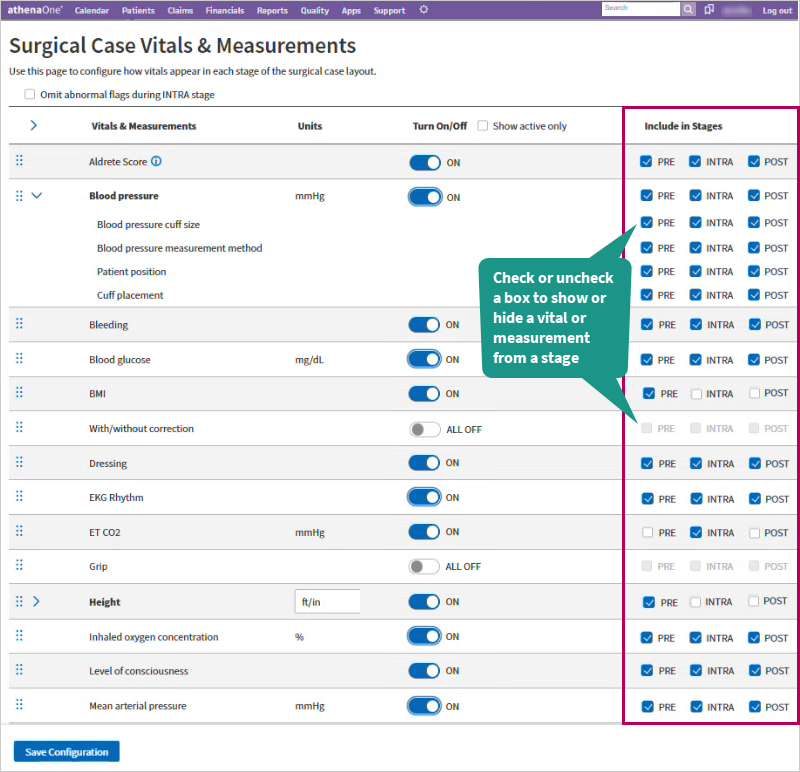
Expand a vital or measurement to view more fields and turn on or off those fields as needed
-
On the Main Menu, click Settings
> Clinicals. -
In the left menu, under Practice Links - Procedure Configuration, click Surgical Case Vitals & Measurements.
Tip: Alternatively, enter text in the search box.
The Surgical Case Vitals & Measurements admin page appears. -
Click the expand icon
 next to a vital to view more fields, like the method used to record the vital.
 -
Under the Turn On/Off column, click the toggle next to the vital or measurement you want to turn on or off.
-
Under the Include in Stages column, check or uncheck a box next to the corresponding stage you want to show or hide a vital or measurement from.
Change the units of a vital or measurement
-
On the Main Menu, click Settings
> Clinicals. -
In the left menu, under Practice Links - Procedure Configuration, click Surgical Case Vitals & Measurements.
Tip: Alternatively, enter text in the search box.
The Surgical Case Vitals & Measurements admin page appears. -
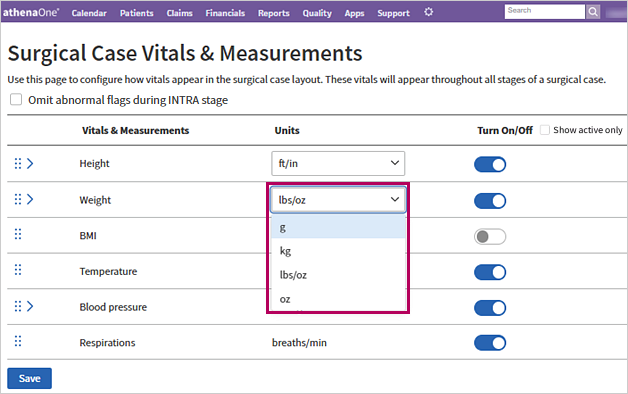
Under the Units column, click the drop-down menu next to the vital or measurement with the units you want to change.
Hide abnormal alerts in the Intra stage
If you record a vital outside of your facilities' normal range, athenaOne flags it with a red Abnormal alert.
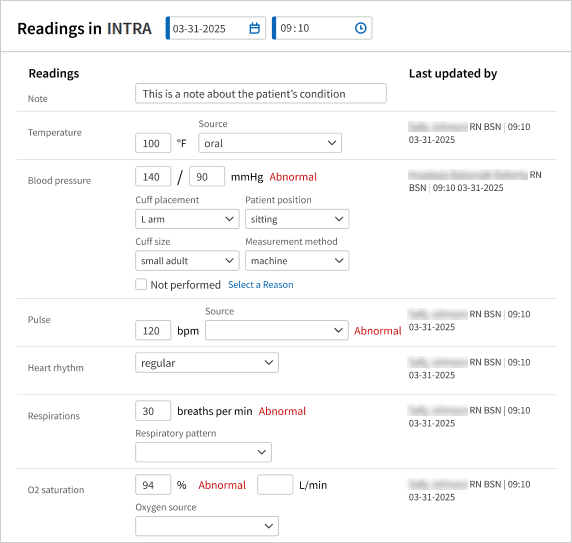
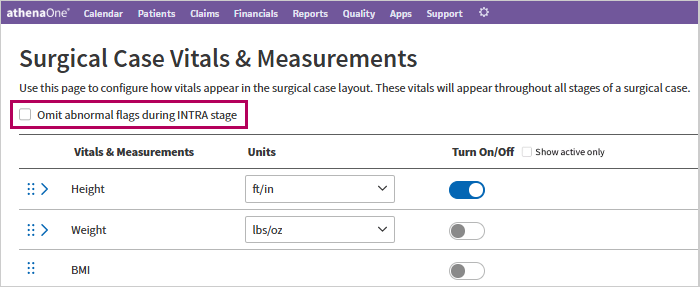
If you are alerted to abnormal vitals via other means and want to hide these abnormal alerts in the Intra stage of a surgical procedure, check the Omit abnormal flags during INTRA stage box at the top of the Surgical Case Vitals & Measurements admin page.
Only display active vitals and measurements
If you have turned off certain vitals and measurements for the surgical case and want to only see active vitals and measurements on the admin page, check the Show active only box next to the Turn On/Off column.
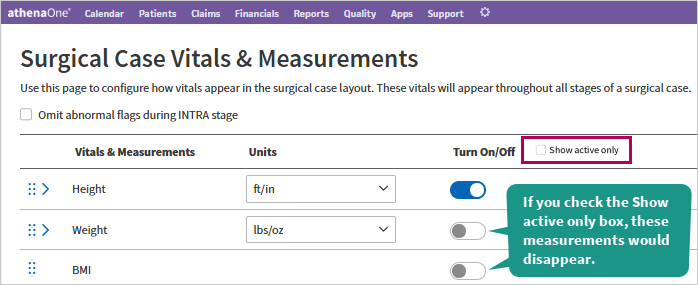
Once you check the Show active only box, athenaOne hides all vitals and measurements that you turned off. To view all hidden vitals and measurements, uncheck the Show active only box.
Note
When you leave and come back to the Surgical Case Vitals & Measurements admin page, athenaOne displays all active and inactive vitals and measurements once again. If you want to hide the inactive vitals and measurements again, check the Show active only box.